Nexus client access through a web browser
To access the Nexus client, you will need to use a valid web browser. See the browsers that FileHold supports.
The Nexus client is the next generation user interface and user experience for FileHold. At a high level, consistency has been maintained with the layout of the classic FileHold clients.
To login via the Nexus client
- Type the URL provided by your administrator into the address bar of your web browser. We recommend that users bookmark this page or make it a favourite for easier access.
The URL is in the format https://<server-name>/Nexus. Replace <server-name> with the actual name of your FileHold server. In the following example, the server name is edms.example.com.
https://edms.example.com/Nexus
- If you are not already logged in, the FileHold log on page may appear. The options here are configurable by your administrator. In the case where a single authentication provider has been configured, it is possible this page will never appear, and you will be automatically signed in using your single sign on credentials.
Automatic sign in can be configured in managed options in the Authentication.EIdP.AutoSelectSingleProvider key.
Resetting your password
Users can be managed in many locations. If your user is managed in your local FileHold system, you may be able to recall your user ID or reset your password from a link on the log in screen.
Administrators can determine if the "forgot" options are available for users from the security settings page.
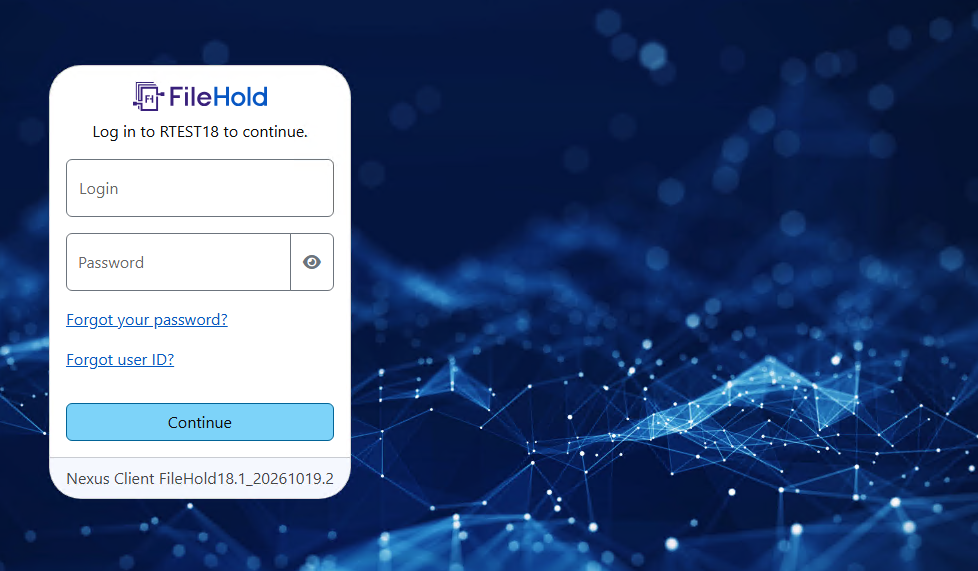
- Select the "Forgot your password?" link and provide your username. You will receive a time limited password reset link to the email address associated with your user.
- If you do not remember your username, select the "Forgot user ID?" link and provide your email address. If you have a user in the system associated with the provided email address, you will be sent your username by email.
- Follow the email link to get your username or reset your password.