Using the web Outlook integration
Web Outlook integration is the only way to add documents directly to FileHold from Outlook in a web browser or the new Outlook for the desktop. It can also be used with the classic Outlook for the desktop as an option in addition to the FileHold Office Client (FOC)
The Outlook add-in must be configured and added to your Outlook before you are able to use it.
Opening the panel
The client panel will open on the right side of your screen. You can open it by pressing the FileHold icon on the Outlook ribbon.
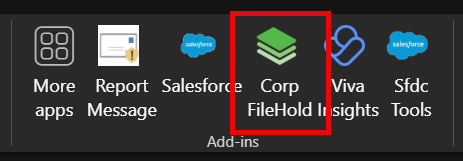
If you do not have the FileHold icon on your ribbon, you can ask your administrator to add it for you.
The panel layout
The panel has several sections. From the top:
- The title with the system name and the pin and close buttons,
- Tab and profile selection,
- File name and library location selection,
- Metadata fields,
- And action section.

Adding documents
- Select the add tab. The file to be added is displayed immediately below the tab.
If the file has already been added, you may not be able to add it a second time depending on how your administrator has configured this feature.
- Choose the library location specifically or select auto-filing.
The control buttons for the library location will change whether auto-filing is checked or not. When it is not checked, you can pop up the library tree to select from or clear the selected value. When auto-filing is checked, you can click the button to show the folder that auto-filing will calculate for storing the document. You can hover over the location to see the full path.
- Select the document schema and fill out the metadata fields.
- Check the box to email notify all folder members the document has been added.
- Choose a workflow to initiate if needed. The workflow cannot require any ad hoc initiator actions to be used on this panel.
- Press Add.
- When the document has been successfully added, a message will be displayed at the bottom of the panel. Optionally press Show to open a window showing the document in the FileHold library.
Any configured extraction rules will be applied when the Add tab is first displayed. This applies to the email message and the currently selected attachment.
Selecting attachments
Every email has at least one file, the message. However, it also may have inline images and arbitrary file attachments. These can be added to the library independent of the email message.
- Select the Files tab. The available files will be listed. The email message is always listed first, followed by the arbitrary file attachments, followed by the inline images.
- Click the file you wish to add. You will only be able to add files with the add icon. Files with the FileHold icon have already been added and clicking on them will go to the document in the library.
- The Add tab will be automatically selected and you can complete adding the file as above.
Your profile
The profile avatar on the top right of the panel allows you to log out, get help, or get more information about the add-on and the current user.
- Click the profile avatar.
- Select Logout or Help.
Using restore
The restore button helps with situations where you add related files one after the other. For example, you have several files associated with the same project. There is a good chance the metadata values required for one document are the same as for the related documents.
The restore button will recall your previously entered metadata values. The only exception will be for metadata values created by extraction rules. These values are specific to the email. They will not be restored to their prior values.
External system ID
When an email is added to FileHold, its Outlook ID is stored along with the document. This ID can be used to determine if the file is already added. If you click on a file to open it in FileHold, you will see it searches for the document based on its external system ID and external system name “Microsoft Outlook”.