Using the REST API documentation
The REST API is written to the OpenAPI standard. This common format is available on your FileHold server regardless of whether your server is hosted in the FileHold cloud or self-hosted. You can access it at https://<my-server>/fh/filehold/api/swagger.
When you open the page, you will see a display like the following:
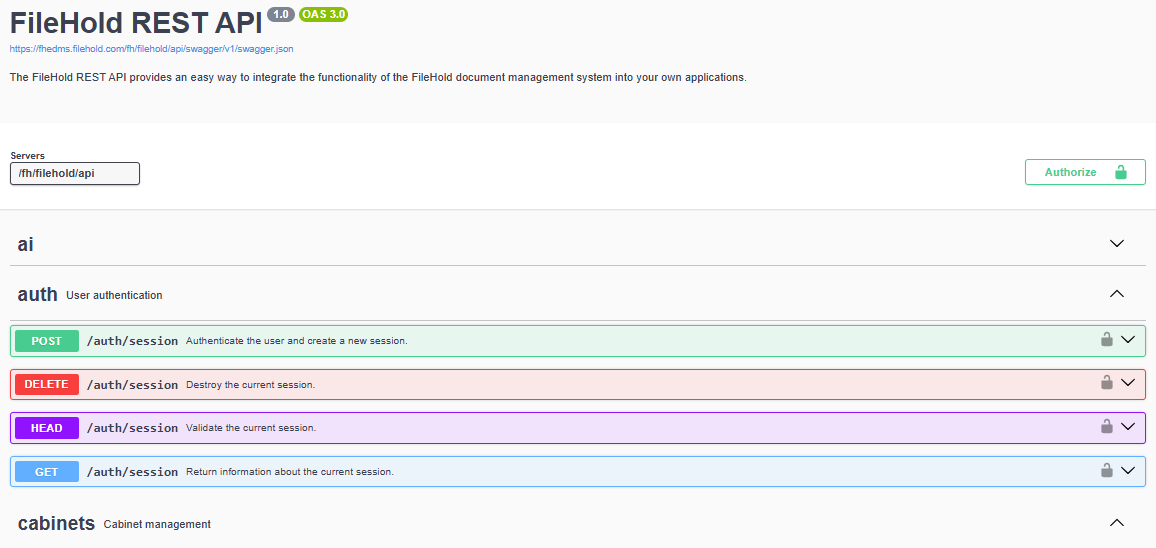
The page is formatted as a series of expandable and collapsible sections. Click the chevron on each section control whether it is expanded or collapsed.
In addition to providing the information necessary to make REST API calls, the documentation page has a "Try it out" feature that allows you to make API calls directly from the documentation page. This button is attached to each method. In most cases, you will need to authenticate before calling a method. The top of the page includes an "Authenticate" button that will open a dialog allowing you to define a bearer token. This token is the session GUID assigned to every FileHold session using the SOAP/XML or REST API.
The REST API provides a simple convenience /auth/ endpoint as a simple way to authenticate with a local user on this page. If you are already authenticated using on the standard clients, you can get the necessary GUID by looking for the FHLSID cookie with the classic clients or the bearer token from the Nexus client using your browser's developer mode.
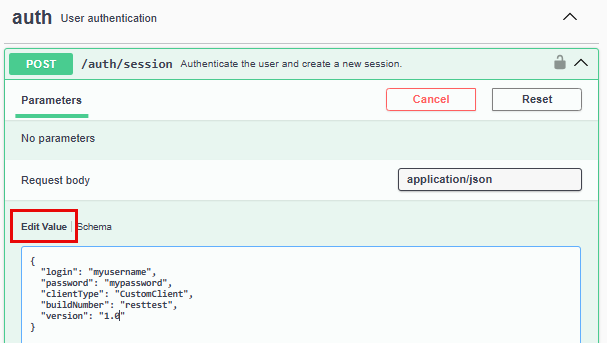
Chose the POST method for /auth/session, press and select the Edit Value tab. A JSON request template will be presented. Include your username, password, "CustomClient", some text for the build number like "Testing", and a version number. When you are ready, press .
If you have entered the parameters correctly with a valid user, you will get a 200 status response with the GUID you need.
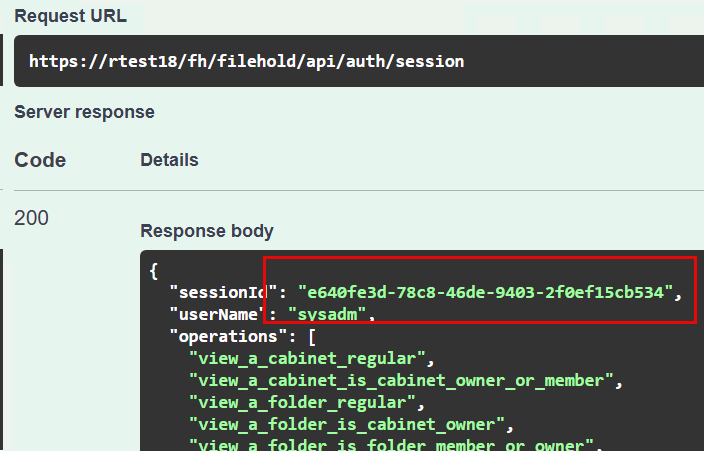
Now you can press and enter the session GUID to prepare the page for sending authorized REST API calls.